Designing for the Printer
Unlike home printers, industrial printers require a very specific type of design setup. No colors can overlap, and what's more for UV printers is there is a requirement of having white under colors in certain conditions.
This chapter tackles those requirements and how to set up your design for UV printing.
Keep in mind that the actual creative process of design is not what we're focussing on here, the design you see me create is not really to my taste, but it does tackle eveything that Tayda might throw at us. The design is simply trying to stress test their UV printing service.
Get yourself a copy of Affinity Studio ready for this course
Illustrator users, you won't need it
This is finally free. Outside of Illustrator, this is the only software that can reliably handle CMYK which is what we need in this course.
The Effects Pedal Vector Pack
Get it here:
Safe area
Set your document units to use millimeters (mm).
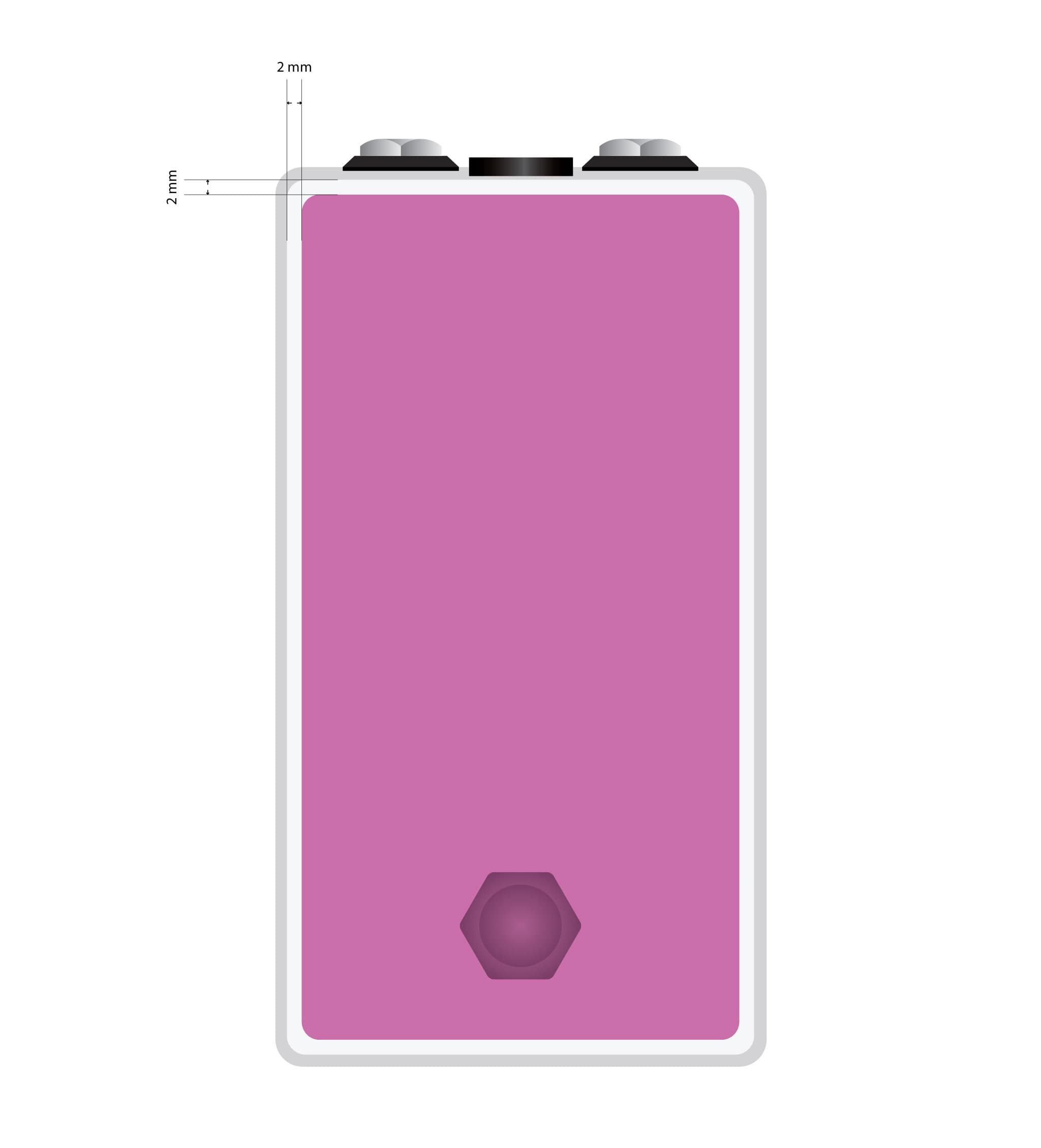
Set up a safe area to design within, design in the middle of your canvas as everything will work out easier if you do that.
The dimensions of the safe area are: 59mm width and 114mm height for 125B.
BUT an easier way of thinking about this because we have many different enclosure sizes is that it's 2mm smaller than the "top" layer on each side.
What does that mean? Get the enclosure parts from the vector pack of the enclosure size you want. Lay them out the way I have. Then, set up a safe area box that is "Top layer" minus 4mm on the width and minus 4mm on the height. Center it. Now you have a 2mm margin around the edge.
Why can't we overlap colors?
I'm believe that in order to remember something, it's best to understand it, even if this is too in-the-weeds for you, here we go.
On a normal home printer, your computer turns everything into one final raster image before it ever prints. During that step, overlapping shapes are automatically resolved so only one color exists in any given spot. This is obviously because it's all flattened down into one image, kind of like taking a screenshot of your artwork. You never see this happening, but it means the printer is always working from a clean, flattened version of the artwork.
With UV and other industrial printers, that flattening step usually does not happen. The RIP (Raster Image Processor) expects the artwork to already be production-ready and treats each shape as a literal instruction. If two colored shapes overlap, the printer will print both, because it has not been told which one should be removed. It's just doing exactly what the file describes.
That's why we have to manually cut shapes out in UV printing. By knocking out overlaps ourselves, we are making the decision the printer is not allowed to make. It guarantees that only one color is printed in each area, which gives predictable results and avoids unwanted color stacking.
The pedal itself if you'd like to know more
Here's a link to the pedal and where I got this circuit from. It's a good read.
This Week on the Breadboard: BJFe Arctic White Fuzz - by Chuck D. Bones
Attribution
Here's the attribution for the topographic graphic I used in this video.